Summary
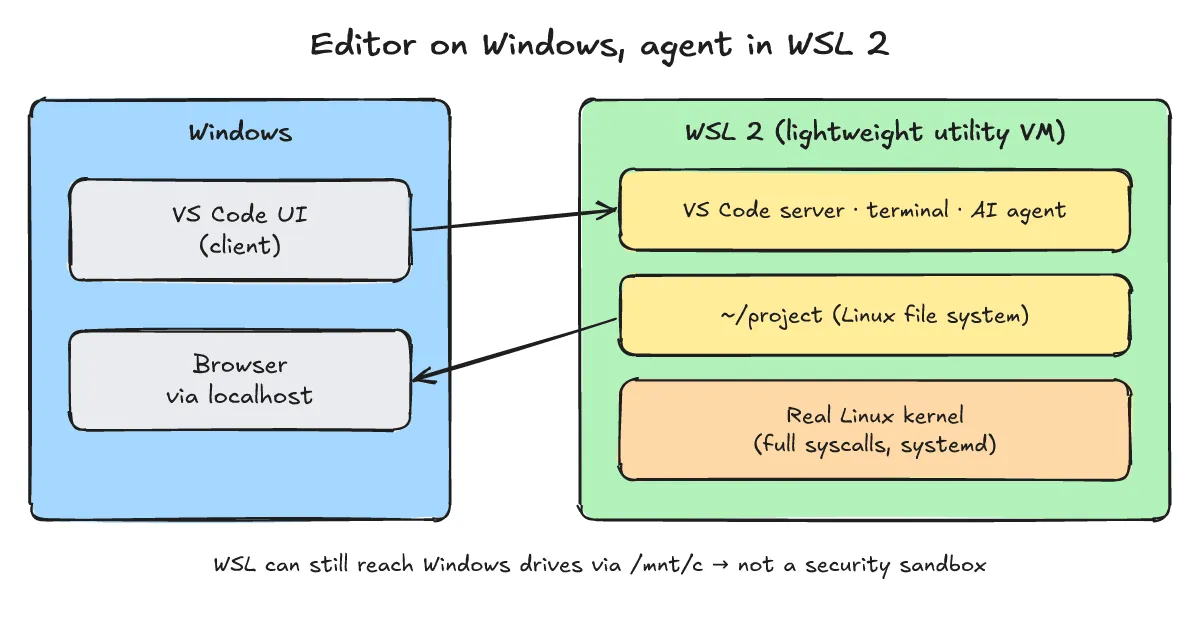
WSL (Windows Subsystem for Linux, default version WSL 2) runs a real Linux kernel inside a lightweight utility VM on Windows. AI agent tools and scripts often assume a Bash shell, POSIX paths, file execute permissions, case-sensitive file names, and Linux packages, so running them inside WSL, which provides that environment, can reduce the compatibility problems of running natively on Windows. Keep your project in the Linux filesystem (~/project) rather than under /mnt/c, and use VS Code on Windows as the editor while the terminal and agent run inside WSL. Note that WSL can still reach Windows drives via /mnt/c, so it is not a security sandbox.
A post on X (2026-10-15) claims that Microsoft recently released “WSL 3.0” and that the safest way to run agents on Windows is to put them inside WSL. This post does not take that claim at face value; it summarizes what Microsoft’s official docs and release records confirm, on a WSL 2 basis.
What is WSL and how does it work?
One-line answer: WSL 2 runs an actual Linux kernel inside a managed, lightweight utility VM, with full system call compatibility and systemd support.
- A real Linux kernel: According to the WSL version comparison doc, WSL 2 runs an actual Linux kernel inside a lightweight utility VM. Microsoft builds that kernel from the latest stable branch and services it through regular updates.
- System call compatibility: The same doc describes full system call compatibility and systemd support, so Linux binaries and Docker-style tooling work without a translation layer.
- Editor on Windows, terminal on Linux: Per the VS Code WSL tutorial, the WSL extension splits VS Code into a client (the UI on Windows) and a server (code, Git, and plugins inside WSL). Agent execution happens on the server side, inside WSL.
Why do AI agents run more reliably inside WSL than directly on Windows?
One-line answer: WSL provides the Linux environment agent tools assume: shell, paths, permissions, and case sensitivity. These are general reasons, not measured results.
-
Linux shell and tooling assumptions: CLI commands and scripts run by agents are often written for Bash, POSIX paths with
/, execute bits (chmod +x), case-sensitive file names, and Linux package managers. -
System call compatibility: With full syscall compatibility, Linux binaries and Docker-style tooling run without a translation layer.
-
A workspace separate from your Windows home: Running the agent in WSL keeps its working environment apart from your Windows home directory. But WSL can still access Windows drives through
/mnt/c, so it is not a security sandbox. -
Checking Linux filesystem behavior: Below is the Linux filesystem behavior agents expect, run on a plain Linux box, not WSL.
actual output (native Linux, not WSL)
$ uname -sr Linux 6.12.94+ $ touch readme.md README.md && ls README.md readme.md $ printf '#!/bin/sh\necho ok\n' > run.sh && chmod +x run.sh && ls -l run.sh -rwxr-xr-x run.sh $ ./run.sh ok -
Reading the result: On the Linux filesystem,
readme.mdandREADME.mdwere created as two distinct files, and the execute bit took effect. Windows drives (NTFS by default), by contrast, are case-insensitive for file names by default.
Where should project files live, and how does networking work?
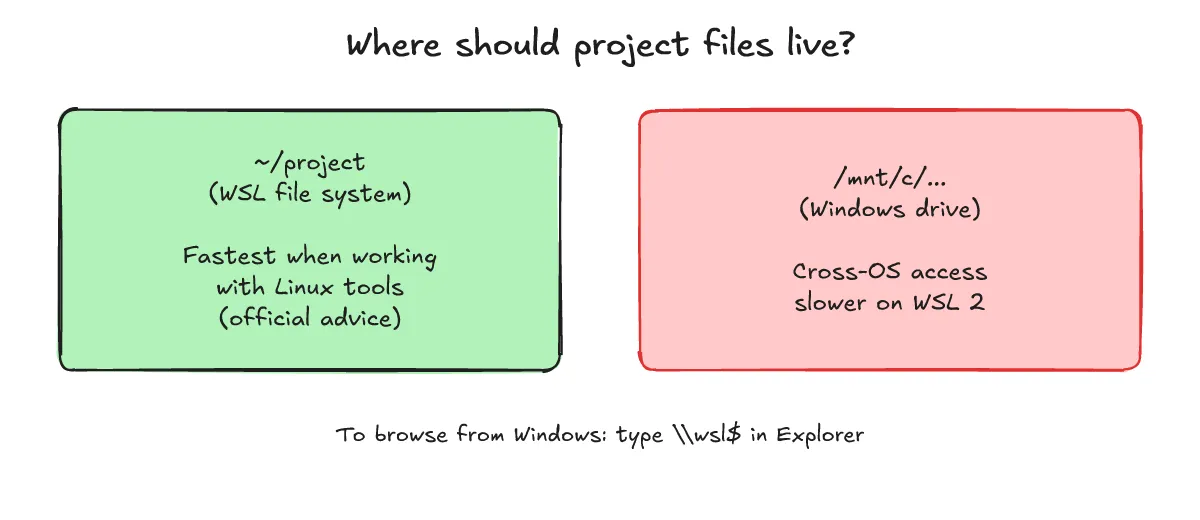
One-line answer: If you work with Linux command-line tools, keep files in the WSL filesystem (
~/project), and reach Linux servers from Windows vialocalhost.
- File location: The WSL filesystems doc advises storing files in the WSL file system for the fastest performance when working in a Linux command line. Windows drives appear at
/mnt/c/..., and cross-OS file access is slower in WSL 2. - Viewing Linux files from Windows: Type
\\wsl$into the File Explorer address bar to browse your Linux files. - Networking: According to the WSL networking doc, the default mode is NAT, and Microsoft recommends trying Mirrored networking mode. Applications running in Linux are reachable from Windows via
localhost.
What commands do you need to install WSL and set up the environment?
One-line answer: Install with
wsl --install, check versions withwsl -l -v, and update withwsl --update. Output is omitted because it varies by machine.
-
Install:
wsl --install -
List installed distributions and WSL versions:
wsl -l -v -
Update the WSL package and kernel:
wsl --update -
Open VS Code connected to WSL, from a WSL terminal:
code .
FAQ: Was “WSL 3.0” newly released?
One-line answer: No new “WSL 3” architecture was announced. According to the official docs, the architecture is still WSL 2.
Q1. Is the recently mentioned “WSL 3.0” a new architecture?
No. The official docs compare only WSL 1 and WSL 2, and WSL 2 is the default. However, on GitHub releases, the WSL package version has reached 3.0.x. The 3.0.1 release (2026-09-30) notes say “WSLc is generally available”, and 3.0.3 (2026-10-10) bumps Microsoft.WSL.Kernel to 6.18.54.1. According to the Windows Developer Blog (2026-09-29), WSL containers is a generally available feature delivered via wsl --update, including the wslc.exe CLI (alias container.exe) and a new consomme network mode. That post also says Windows-file access from Linux is up to 2x faster with wslc. The feature’s start is covered in the public preview post (2026-06-29). Media outlets also reported that WSL PM Craig Loewen said on X on 2026-06-23 that “there is no such thing as WSL 3” (Windows Report). So our reading is that the “WSL 3.0” in the X post most likely refers to the WSL package 3.0.x release (the general availability of WSL containers).
Q2. Does WSL act as a full security sandbox for AI agents?
No. WSL gives you a working environment separate from your Windows home directory, but it can still access Windows drives through /mnt/c, so do not treat it as a security sandbox.
Q3. How do I find my WSL project files from File Explorer?
Enter \\wsl$ in the File Explorer address bar to browse the file system of your installed Linux distributions.